Blog
How to Use Ollama on Android: Local Network or Ollama Cloud
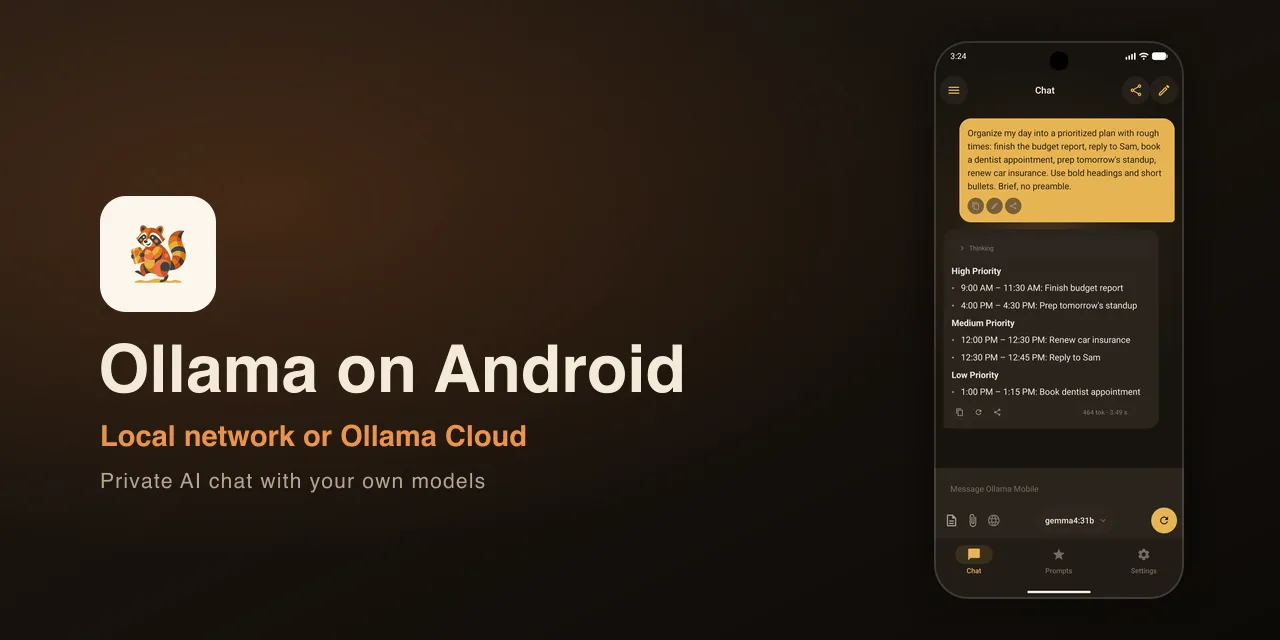
This is the Android walkthrough for Ollama Mobile. There are two ways to connect from your Android phone, and this guide covers both. On iPhone instead? Use the iPhone guide.
Ollama Mobile is an unofficial, community-built client. It connects to a server you choose. It does not run the model on your phone.
Key takeaways
- Two ways to connect. Use your own computer on the same Wi-Fi, or use Ollama Cloud with an API key.
- Local network path: make Ollama listen on your network, point the app at
http://YOUR-IP:11434, and nothing leaves your Wi-Fi. - Ollama Cloud path: switch Mode to Cloud, paste your API key, and you are connected with no server to run.
- Either way, your phone is the client. The model runs on the server you pick.
Two ways to connect
| Path | What runs the model | What you need |
|---|---|---|
| Local network | Your own computer | Ollama on that computer, same Wi-Fi |
| Ollama Cloud | Ollama’s hosted servers | An Ollama Cloud API key |
Pick the one that fits. You can save both connections in the app and switch between them whenever you want.
Before you start
You need the app either way:
- Ollama Mobile installed from Google Play.
For the local network path:
- Ollama installed and running on your computer, with at least one model pulled. If you have not pulled one yet, run
ollama pull llama3.2. - Your Android phone and your computer on the same Wi-Fi network. A guest network or a work VLAN will usually block this.
For the Ollama Cloud path:
- An Ollama account with Ollama Cloud and an API key. Nothing to install on a computer.
Connect over your local network
On this path your own computer does the work and nothing leaves your Wi-Fi.
Step 1: Make Ollama listen on your network
By default Ollama only answers requests from the same computer (it binds to
127.0.0.1). To let your phone reach it, tell Ollama to listen on every interface
by setting OLLAMA_HOST to 0.0.0.0, then restart it.
macOS (the desktop app):
launchctl setenv OLLAMA_HOST "0.0.0.0"Then quit Ollama from the menu bar and open it again.
Windows: open Settings, search for “environment variables”, add a new user
variable named OLLAMA_HOST with the value 0.0.0.0, then quit and reopen Ollama.
Linux (systemd): add the variable to the service, then restart:
sudo systemctl edit ollama
# add under [Service]:
#   Environment="OLLAMA_HOST=0.0.0.0"
sudo systemctl restart ollama
If you start Ollama from a terminal instead, run it with the variable in front:
OLLAMA_HOST=0.0.0.0 ollama serve.
Step 2: Find your computer’s local IP
You need the address other devices use to reach your computer on the network.
- macOS:
ipconfig getifaddr en0(useen1if you are on a second adapter). - Windows: run
ipconfigand read the IPv4 Address line. - Linux:
hostname -Iand take the first address.
You are looking for something like 192.168.1.20 or 10.0.0.15. Write it down.
Step 3: Add a Local connection
Open Ollama Mobile and add a connection. Set Mode to Local, give it a Name (anything, like “My Mac”), and enter your computer’s address in Base URL:
http://192.168.1.20:11434Swap in the IP from Step 2, then tap Test Connection. When it succeeds, tap Save. Now skip ahead to pick a model and chat.
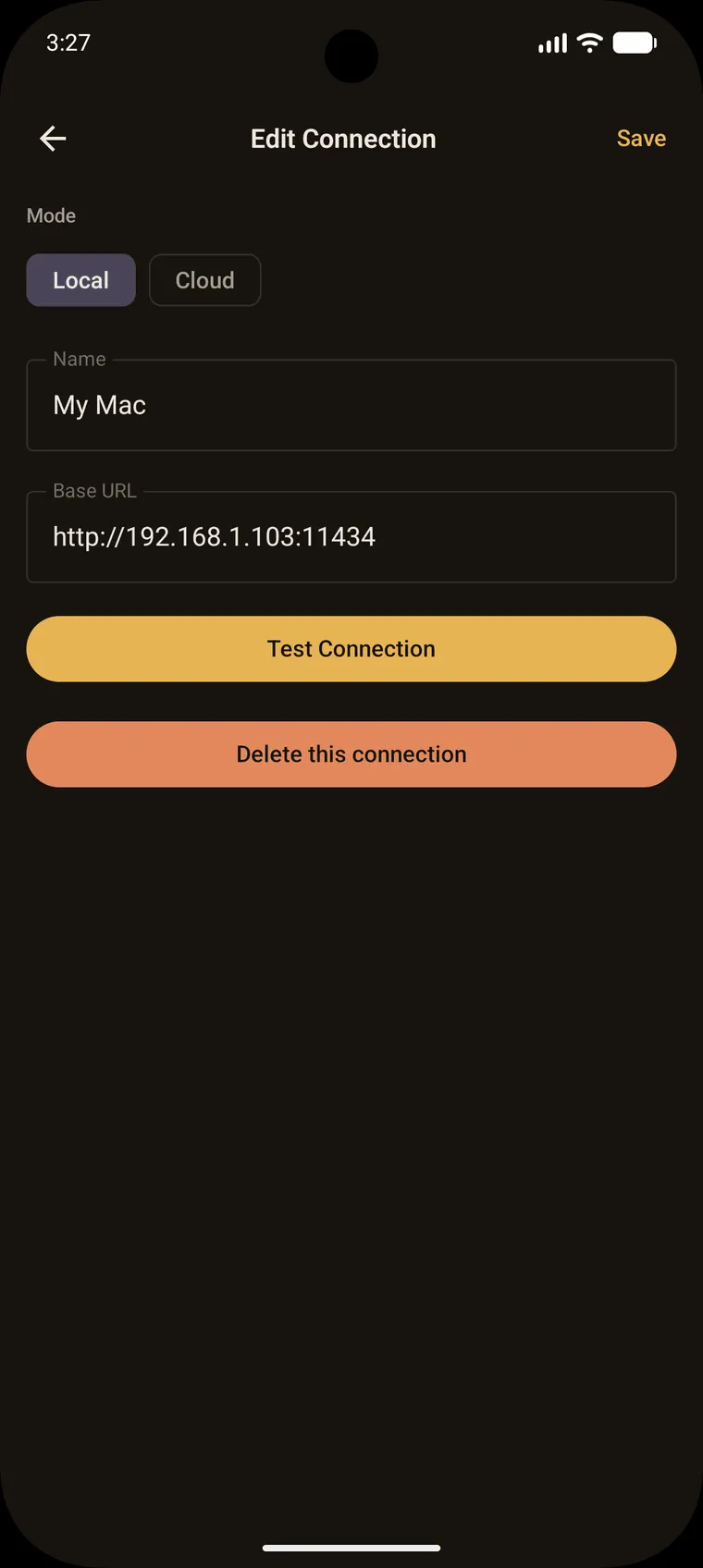
The local connection points Ollama Mobile at http://YOUR-IP:11434.
Connect to Ollama Cloud
On this path there is no server to run and no terminal. You sign in to Ollama Cloud, create an API key, and paste it into the app. Your prompts go to Ollama’s hosted servers, so this path needs an internet connection.
Step 1: Get your Ollama Cloud API key
Sign in to your account at ollama.com and create an API key in your account settings. Copy it so you can paste it into the app in the next step.
Step 2: Add a Cloud connection
In Ollama Mobile, add a connection and set Mode to Cloud. Give it a
Name (like “Ollama Cloud”). The Base URL is already set to
https://ollama.com/api, so you only need to paste your key into API Key. Tap
Test Connection, and when it succeeds, tap Save.
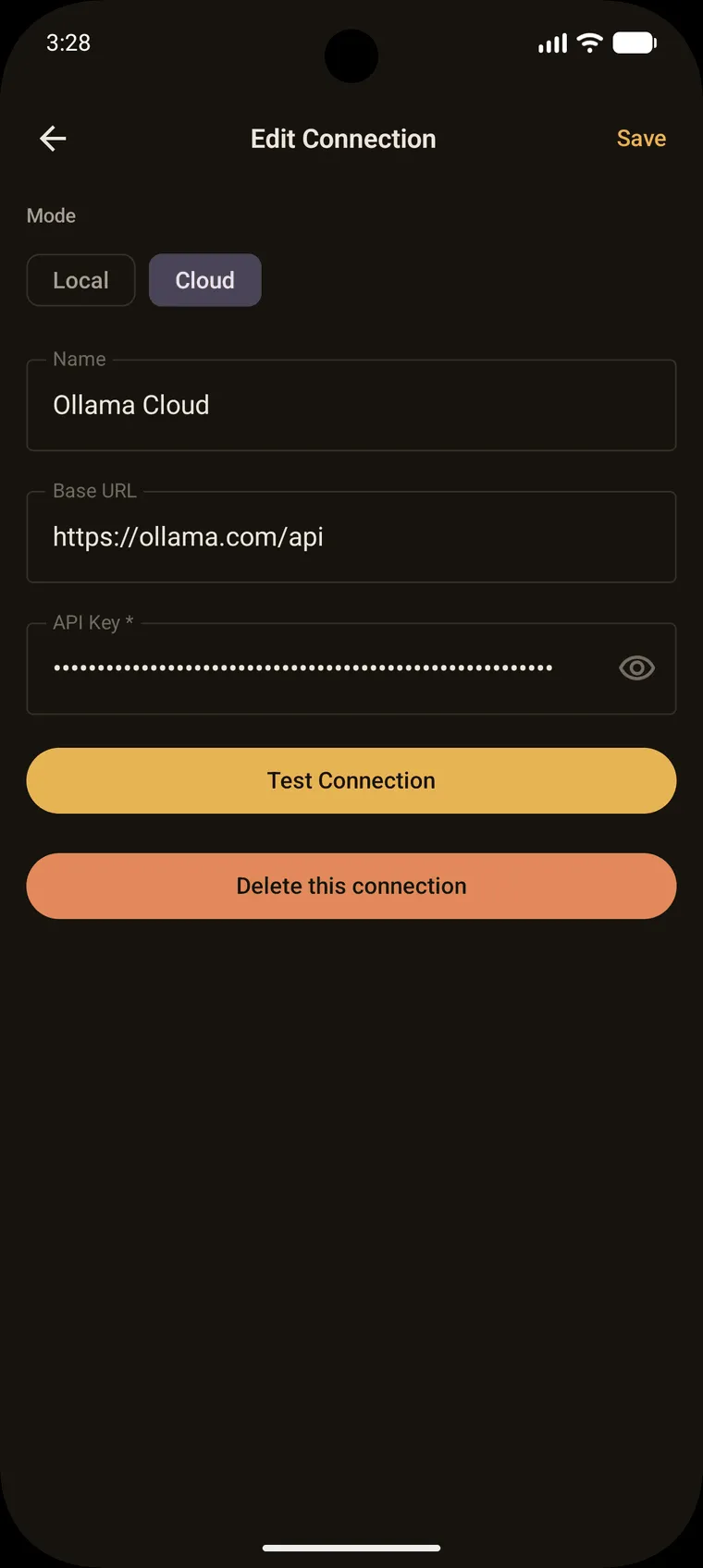
The cloud connection uses your API key. No home server required.
Pick a model and chat
Once a connection is saved, choose one of your models and send a message. On the local path you are running a model on your computer and talking to it from your phone, all on your own network. On the cloud path you are talking to a model on Ollama Cloud.
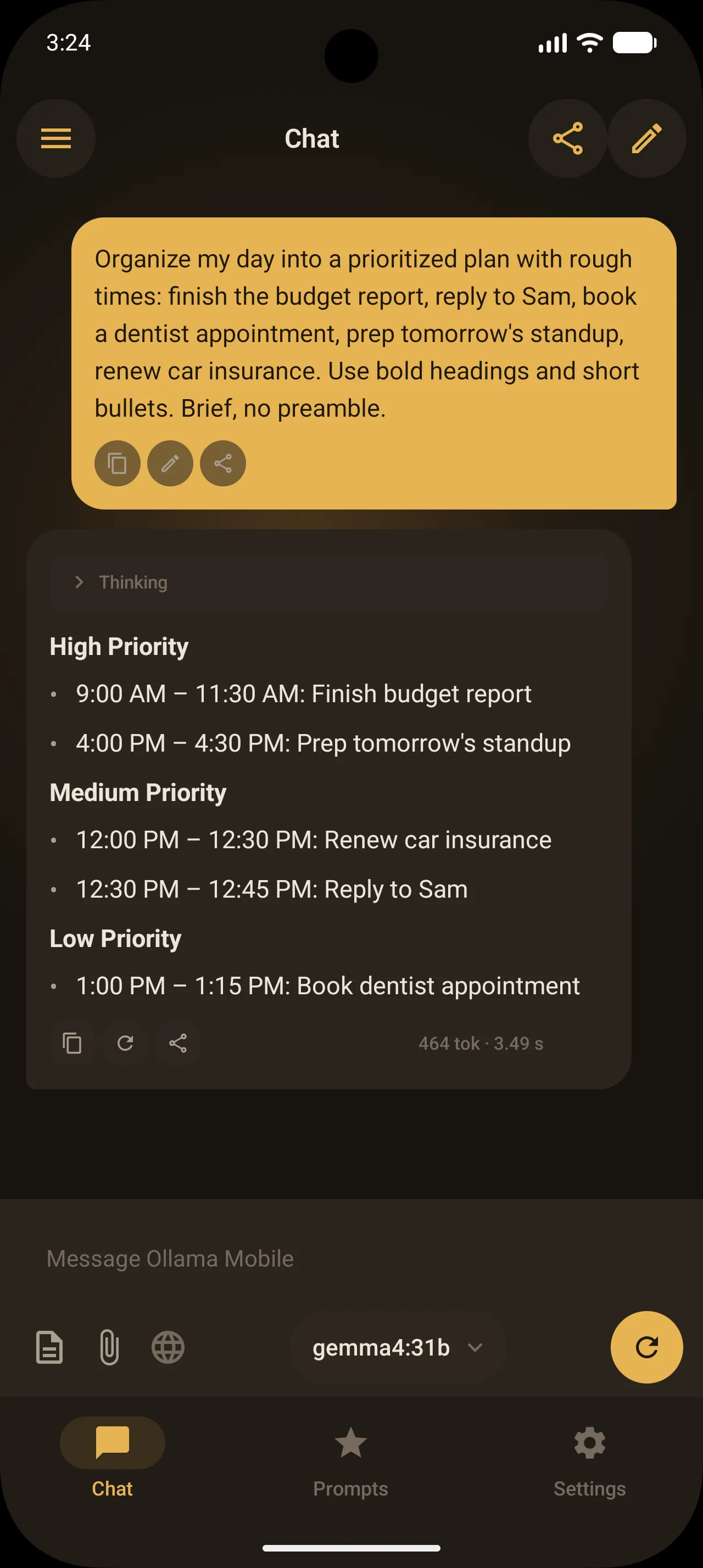
Pick a model and start chatting.
If it does not connect
On the local network path, before changing anything in the app, open Chrome
on your phone and visit http://YOUR-IP:11434. If it shows Ollama is running, the
server is reachable and the issue is in the app’s address. If it does not load, the
problem is the network or the server.
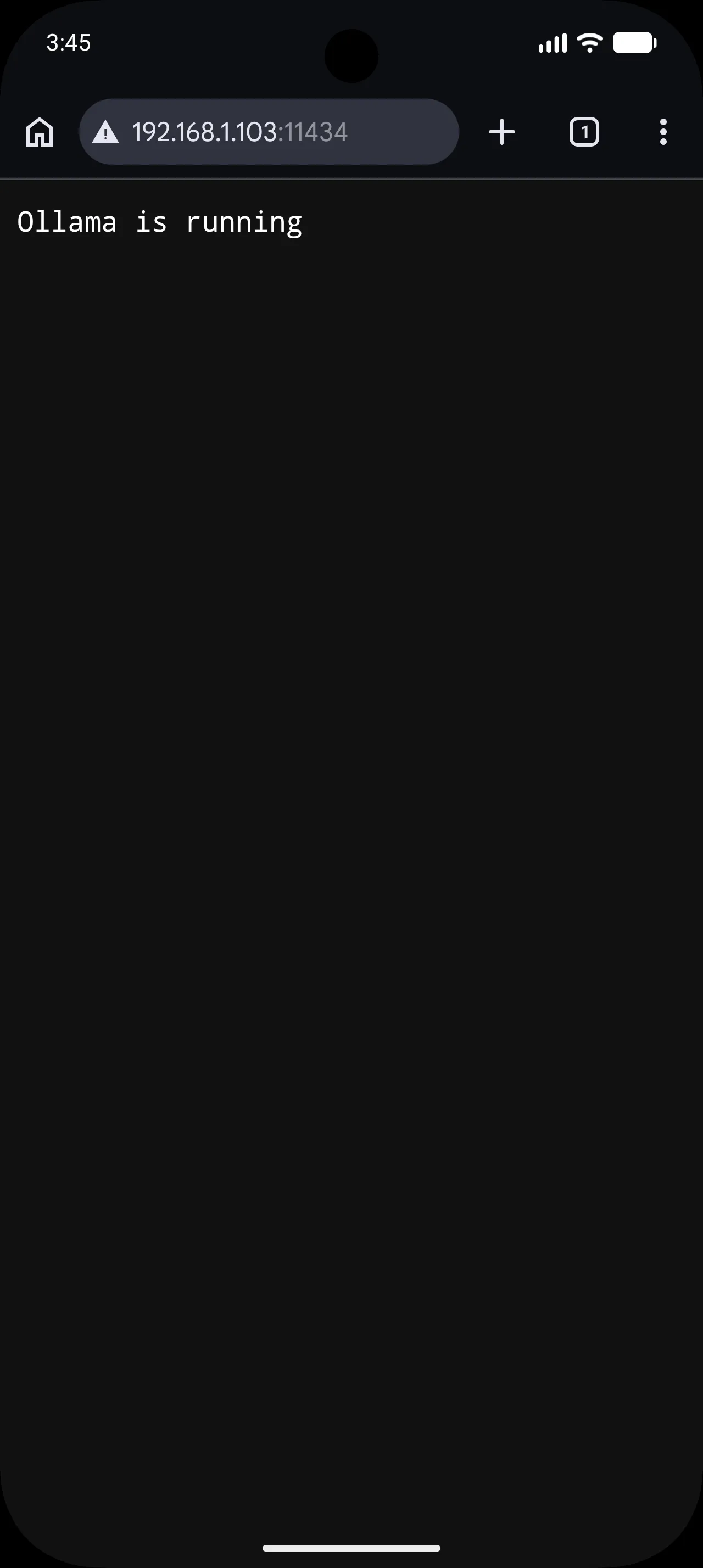
A reachable server shows “Ollama is running” in Chrome.
- Same network? Confirm the phone is on the same Wi-Fi, not cellular or a guest network.
- Did Ollama restart after Step 1? The
OLLAMA_HOSTchange only takes effect on restart. - Firewall? Allow incoming connections on port
11434, or your computer will silently drop them. - Right IP? Your phone cannot reach
localhostor127.0.0.1. That points the phone at itself. Use the network IP from Step 2.
On the Ollama Cloud path, the address is fixed, so the usual causes are the API key and your connection.
- Key pasted in full? Tap the eye icon to reveal the API Key field and confirm there is no missing or extra character.
- Right account? Make sure the key is from the Ollama account that has Cloud access.
- Online? Cloud needs an internet connection, unlike the local path.
Frequently asked questions
Does Ollama Mobile run the model on my Android phone?
No. The model runs on your Ollama server, which is either your own computer or Ollama Cloud. Your phone is the client that sends prompts and shows the answers, so it is not doing the inference.
Should I use the local network path or Ollama Cloud?
Use the local network path when you are home and want everything to stay on your own Wi-Fi with no internet. Use Ollama Cloud when you do not want to run a server yourself, or when you are away from home. You can save both and switch between them in the app.
Why can my Android phone not see my Ollama server on the local path?
The three usual causes are different networks (including a guest Wi-Fi), Ollama
still bound to localhost (set OLLAMA_HOST=0.0.0.0 and restart), or a firewall
blocking port 11434. Check them in that order.
How do I get an Ollama Cloud API key?
Sign in to your account at ollama.com and create an API key in your account settings. Then paste it into the API Key field when you add a Cloud connection in Ollama Mobile.
Is this the official Ollama app?
No. Ollama Mobile is an independent, community-built client. It works with Ollama but is not made or endorsed by the Ollama project.
Next steps
You now have Ollama on your Android phone, on your own network or through Ollama Cloud. Read the full guide to using Ollama on your phone, or set up a second device with the iPhone guide.